
90% of people in office jobs say they could save 2 hours daily with better tools. This shows a big opportunity that tech for personal productivity seeks to fill.
Recommended content:
You will remain on the same website.
Productivity tools help you handle time, tasks, and focus better. This means you can do more with less stress. Apps like Todoist, Asana, Evernote, and others make it easy to turn chaos into clear steps.
This article explores everything: basic ideas, apps for tasks and notes, time tracking, and more. It covers mobile apps, AI helpers, wearable tech, and how to stay well balanced.
You’ll see real advantages like less time on daily tasks, clearer goals, easier teamwork, and better focus. Next, we dive into what productivity tech is, tool options, how to start, and what’s coming. This helps you find the best apps for your day.
Understanding Personal Productivity Tech
Every day, you use a variety of apps, devices, and services to accomplish more. These are known as personal productivity tech. It includes task managers, calendars, note apps, time trackers, automation services, wearables, and AI helpers. They help you plan, act, and review your work. For organizing projects, you might use Trello or Notion. Google Calendar helps with scheduling, RescueTime offers focus reports, and Google Assistant or Siri can perform quick tasks.
What makes up this ecosystem?
This ecosystem is made up of several core parts. You’ll find task management, note-taking, time tracking, calendar scheduling, automation, and more. Tools like Notion, Evernote, and Google Workspace help you organize your notes and files. Trello, Asana, and Todoist help keep tasks in order. And time trackers, such as RescueTime and Toggl, show you how you spend your hours.
Why it matters now
The world of work is changing with hybrid workplaces and constant digital communication. This increases the need for organization. Tools like Google Workspace and Microsoft 365 help with remote teamwork, while platforms like Zapier and IFTTT cut down on repeat tasks. By using these tools, you can avoid missed deadlines and reduce stress.
Real-world impact and risks
Using these systems can help you finish projects faster and reduce stress. You won’t have to keep everything in your head. Habit trackers like Habitica or Streaks offer insights to improve your routines. But be careful of too many notifications, using too many different tools, and depending too much on technology. Later, we’ll look at how to keep your tech use balanced and maintain your well-being.
| Component | Example | Primary Benefit |
|---|---|---|
| Task Management | Trello, Asana, Todoist | Clear priorities and project flow |
| Note-Taking & Organization | Notion, Evernote, Google Keep | Centralized reference and searchable ideas |
| Calendar Scheduling | Google Calendar, Outlook | Better time blocking and meeting control |
| Time Tracking | RescueTime, Toggl | Data-driven focus and habit insight |
| Automation | Zapier, IFTTT | Repeatable workflows without manual steps |
| Communication & Cloud | Google Workspace, Microsoft 365, Slack | Smoother collaboration and file access |
| Wearables & AI | Apple Watch, Fitbit, ChatGPT tools | Health-aware schedules and intelligent helpers |
Key Tools for Boosting Productivity
Choosing the right apps can smooth out your day. Task management apps, note-taking software, and time trackers can form a solid system. This system will capture work, organize thoughts, and track focus. Here, we’ll share tips on choosing the right tools and connecting them effectively.
Task Management Applications
Task management tools organize your tasks, set priorities, and monitor your progress. Find one that suits your workflow. Todoist is great for simple lists and due dates. Asana focuses on team efforts and goals. Trello visually plans with boards. Microsoft To Do integrates with Outlook for planning around your calendar.
Look for features like recurring tasks, tagging, priority levels, and calendar links. Also check for ways to automate tasks. Having your tasks synced across all devices helps you stay on track no matter where you are.
Note-Taking Software
Note apps help keep your ideas, notes, and research in one place. Evernote is perfect for saving things from the web. Notion combines databases with pages for organizing projects. OneNote is like a digital notebook. Bear is designed for those who like markdown for note-taking.
Use tags consistently, create templates for recurring notes, and link notes to your tasks. Quick saves with web clippers or mobile apps keep ideas at your fingertips. Linking notes to tasks makes it easier to act on your ideas.
Time Tracking Tools
Time tracking tools reveal how you use your time. Toggl Track has both manual and auto timers. RescueTime shows what’s distracting you. Clockify is free for teams who need to track hours on projects.
Set timers for work sessions and check your reports to find distractions. Blend time tracking with apps like Pomodoro to push for more efficient work. Link your timers to tasks to see what efforts are most fruitful.
Connecting your apps is crucial. Link task managers with note apps and tie timetrackers to tasks. Use tools like Zapier to sync everything automatically. Keeping your apps connected makes your tech setup seamless.
| Category | Best for | Notable Names | Key Features to Check |
|---|---|---|---|
| Task Management | Capturing and scheduling work | Todoist, Asana, Trello, Microsoft To Do | Recurring tasks, tags, priorities, calendar sync, automation |
| Note-Taking | Centralizing ideas and reference material | Evernote, Notion, OneNote, Bear | Templates, tagging, web clipper, cross-device sync, linking to tasks |
| Time Tracking | Measuring focus and billing hours | Toggl Track, RescueTime, Clockify | Manual/auto timers, background analytics, reports, project linking |
| Integration | Connecting workflows | Zapier, native app integrations | Two-way sync, triggers, reduced manual entry, cross-app linking |
Mobile Applications That Transform Your Day
Mobile apps can make your phone a powerful tool for both work and life. Choose apps that work on all your devices. This way, moving from one device to another is seamless. Finding the right tech tools means planning, focusing, and acting becomes effortless.
Apps for organization and planning keep important information close. Use apps like Google Calendar or Microsoft Outlook for scheduling. Try Any.do for tasks and seeing your calendar in one place. Use Notion and Evernote for planning and saving research. Colors for events and syncing across devices make planning a breeze.
Choose apps that also work offline and quickly update when back online. This is handy in areas with weak signal or on flights. It ensures you don’t waste time or repeat work.
Apps to help you focus reduce distractions and set times for deep work. Forest and Focus@Will use timers and sounds to keep you on track. Freedom and Cold Turkey block off distracting content. Pomodoro timers, like Focus Keeper, break work into short, trackable segments.
Combine focus apps with tools to track time to see how much you get done. Block out time for focused work in your calendar. Turn on Do Not Disturb on your phone to keep focus intact. This method helps you stay focused and make visible progress.
See below for a guide to choosing the best productivity apps for your needs. Whether it’s for organization, focus, or saving time, there’s an app out there for you.
| Need | Recommended Apps | Key Benefit | Cross-Platform |
|---|---|---|---|
| Schedule and calendar | Google Calendar, Microsoft Outlook, Fantastical | Reliable scheduling, color-coding, shared calendars | Yes |
| Task and project planning | Any.do, Notion, Evernote | Combined tasks, templates, clipped research | Yes |
| Deep focus sessions | Forest, Focus@Will, Focus Keeper | Timed focus, reduced context switching | Yes |
| Distraction blocking | Freedom, Cold Turkey | System-wide site and app blocking | Partial (desktop+mobile for some) |
| Offline work & fast sync | Notion, Evernote, Any.do | Access when offline, quick reconciliation when online | Yes |
The Rise of Automation in Personal Productivity
Automation is revolutionizing your everyday work. It eliminates routine steps, freeing up time for more important tasks. With simple rules, you can manage email attachments, organize cloud files, or turn messages into tasks.
How Automation Streamlines Tasks
Begin with small automations to ease one tedious task at a time. Automatically saving files to the cloud, syncing deadlines, and updating spreadsheets makes work smoother.
Such automations cut down on errors and ensure uniformity. This shift lets you focus less on mundane tasks and more on creative or strategic efforts. By keeping an eye on these systems, failures are caught early, maintaining their reliability.
Popular Automation Tools and Services
There are various tools for automating workflows. Zapier links thousands of apps for creating tasks, transferring files, and sending notifications. IFTTT simplifies setting up triggers for both personal and smart-home uses.
Microsoft Power Automate is great for those using Microsoft 365, while Make (formerly Integromat) excels in complex automation setups. For everyday activities, Apple Shortcuts, Gmail filters, and Slack automations are very handy.
Choosing automation tools wisely involves documenting processes and reviewing app permissions for privacy. Start with a clear objective, test your automation, and only broaden its use once it’s consistently reliable.
| Tool | Best for | Typical Use Case | Skill Level |
|---|---|---|---|
| Zapier | Cross-app integrations | Creating multi-step workflows between apps for task and file automation | Beginner to Intermediate |
| IFTTT | Consumer automation | Trigger-action automations for apps and smart home devices | Beginner |
| Microsoft Power Automate | Enterprise Microsoft users | Automating flows inside Microsoft 365 and enterprise systems | Intermediate to Advanced |
| Make (Integromat) | Complex visual workflows | Data transformations and multi-step integrations with conditions | Intermediate to Advanced |
| Native App Automations | Platform-specific tasks | Apple Shortcuts, Gmail filters, Slack automations for daily routines | Beginner to Intermediate |
Enhancing Communication with Technology
You rely on clear communication to move projects forward. Tech for personal productivity has reshaped team sharing, decisions, and record-keeping. The right tools can reduce emails and keep everyone on track.
Collaboration Tools for Teams
Tools like Slack, Microsoft Teams, Asana, Monday.com, and Basecamp make project coordination and task assignment easier. They let you organize work into channels or projects to cut down on emails. It’s also key to set when people should expect answers to stay aligned. And, use a central spot for docs like Notion or Confluence for simple updates.
Adding Google Workspace or Microsoft 365 lets your team edit docs together in real time. This prevents confusion over document versions and moves your project along. View shared calendars and file folders as part of your digital tools to ease access and transitions.
Instant Messaging Platforms
Instant messaging lets you make decisions fast and can reduce meeting numbers. Slack, for example, has app adds-on and discussion threads for focused talks. Microsoft Teams integrates with Office apps well. Discord is a good choice for casual or creative teams. Use online status and silent hours to keep focus periods protected.
Turn off alerts for less important chats and plan messages for various time zones. Use saved message templates for common updates to save time. For U.S. companies, choose platforms that offer single sign-on and strong encryption for better security and compliance.
The Role of Artificial Intelligence
AI has shifted from experiments in labs to tools we use every day. It changes the way you manage time and process information. It also reduces repetitive cognitive work. This makes tech for personal productivity smarter and more in tune with your habits.
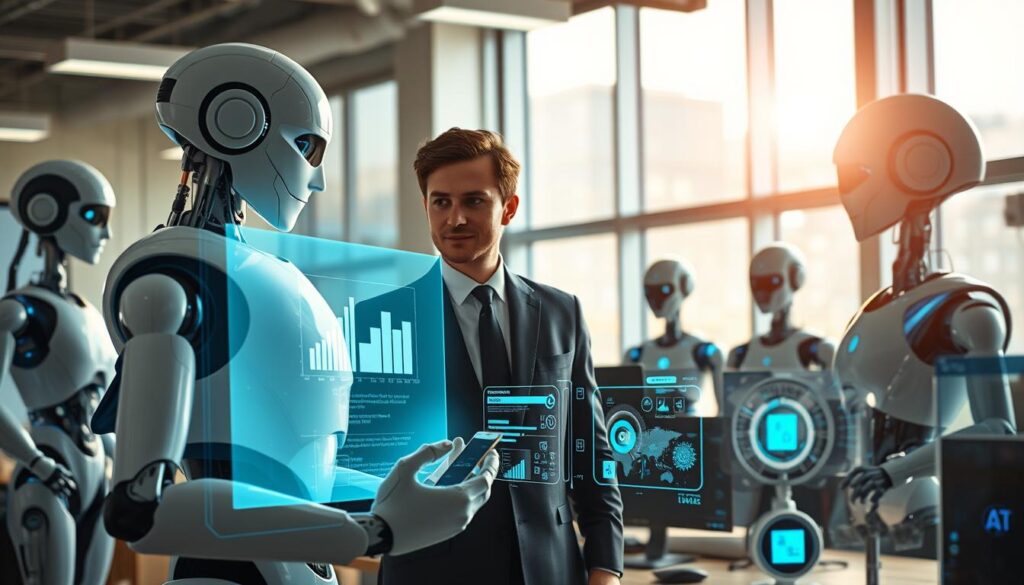
AI assistants take care of routine work so you can focus on things that matter more. They handle your schedule, write emails, sum up long documents, and make task lists. These tools can schedule meetings, write quick replies to messages, and turn meeting notes into tasks.
There are many tools out there. Google Assistant and Siri help with voice commands and controlling smart homes. Microsoft Copilot and Google Gemini aid in editing documents and managing emails. ChatGPT and other tools powered by OpenAI are great for brainstorming, writing, and simple data tasks. These options show how AI is becoming a part of everyday tasks.
Personalization through AI makes technology adapt to your work style. It learns when you focus best, suggests ways to automate your workflow, and manages notifications. Tools like RescueTime find the best times for you to focus. Email apps, like Superhuman, use smart shortcuts to make managing your inbox faster.
When you use AI for personalization, keeping your data safe is key. Check your privacy settings and read up on how your data is used. Choosing on-device processing, like on Apple devices, helps keep your data safe. Managing where your data is stored minimizes risks while you still get the benefits.
AI makes repetitive tasks quicker and increases output, but it’s not perfect. Always check its work for mistakes or bias. Think of AI assistants as partners that help with the grunt work. Then use your own judgment for the important stuff.
To really benefit from efficiency apps and AI assistants, start with something small. Turn on an automation, see how it goes for a week, then try more. This method makes learning easy and improves your productivity bit by bit.
Wearable Technology and Productivity
Wearable tech merges your schedule and health data. It helps minimize interruptions and lets you quickly capture ideas. Tuning your day to your energy levels becomes easier.
Smartwatches and Personal Alerts
Smartwatches make getting reminders more natural. The Apple Watch, Samsung Galaxy Watch, and Fitbit send important alerts and calendar reminders. This means you won’t need to check your phone as much.
Haptic reminders can tell you when to stand up without a sound. Quick replies and voice task features turn ideas into action fast. When synced with efficiency apps, these watches handle tasks with simple taps or voice notes.
Fitness Trackers to Maintain Energy Levels
Fitness trackers monitor sleep, heart rate, and your daily activity. Brands like Fitbit, Garmin, and Apple provide important health metrics. These can be linked to health apps for a deeper look into your recovery and energy.
By understanding your data, you can plan tough tasks for when you’re most alert. Reminders to move help dodge that afternoon tired feeling. Connecting trackers to productivity apps shows how sleep and fitness impact your work.
Combining wearable tech data with productivity techniques tailors routines to your needs. Making small changes based on your data keeps you working efficiently and feeling great.
Cloud Solutions for Flexible Working
You can work from anywhere without losing track of your files. Cloud storage gives you instant access to your documents on different devices. Services like Google Drive, Dropbox, OneDrive, and Box keep your projects moving. You can easily switch between locations or devices without a hitch.
Your work is safe with automatic syncing and version tracking. Losing drafts becomes less risky with backups. As you need more space, you can go for paid plans. These allow more storage and better control for teams.
Benefits of Cloud Storage
Digital tools help you organize files so you can find them fast. A well-planned folder system saves you time looking for things. Everyone can use shared drives. This helps keep important files in one place. Plus, old files don’t get in the way because you can archive them.
You can keep your private files safe with special permissions. Restore old versions easily if you need to undo changes. These options make your work process safer and more adaptable.
Sharing and Collaborating in the Cloud
Teams can work together in real-time. Tools like Google Docs and Microsoft 365 offer ways to review and edit together. This keeps everyone on the same page through every draft.
It’s easy to share files in the cloud. You decide who can look at, comment on, or change your files. You can also stop access when needed.
Link your storage to automation tools to make work flow smoother. A new file can let your team know, start a task in Asana, or push documents forward. This cuts down on repetitive tasks.
A table below shows you how to choose cloud solutions for flexible work. It looks at what you might need and matches them with cloud features and tools you might know.
| Need | Typical Feature | Real Tools | How it improves productivity |
|---|---|---|---|
| Access from multiple devices | Cross-platform sync, mobile apps | Google Drive, OneDrive, Dropbox | Reduces downtime when switching locations or devices |
| File recovery | Version history, automatic backup | Microsoft 365, Box | Allows quick restore of prior drafts and prevents data loss |
| Team collaboration | Real-time editing, comments, shared drives | Google Docs, Microsoft 365 | Speeds review cycles and keeps contributors aligned |
| Security and control | Permissions, expiration links, admin controls | Box, OneDrive for Business | Protects sensitive data while enabling controlled sharing |
| Automated workflows | Triggers, integrations, API access | Zapier, Microsoft Power Automate | Reduces manual tasks and links cloud storage to task systems |
Combine cloud services with digital organization tools to focus better. Simple steps, like using consistent folder names and cleaning up files, make cloud sharing easy. Let automation tools do the repetitive work for you.
Embracing Virtual Reality for Focus
Virtual reality (VR) is now more than just for games. It offers tools that change the way you work. With the right gear and apps, you can create zones without distractions, use many virtual screens, and have sessions that feel better than just one screen.
Apps like Meta Quest with Horizon Workrooms, Spatial, and Immersed make immersive work spaces. These are great for focusing deeply. You can use virtual whiteboards, see live documents, and feel like you’re in an office from your home.
These tools are great for looking at complex data and working together on projects. They help you see 3D models well, compare different versions, and stay focused. This changes how people work together from afar and how you can work deeply by yourself.
VR Tools for Immersive Work Environments
Pick platforms that fit what you need. Meta Quest and Horizon Workrooms are good for group work and meetings. Spatial is great for 3D team projects. Immersed is best for solo work with many screens.
Start with short times to keep comfortable. Many find that using VR for work adds focused hours. These tools limit distractions and let you set up your work space just how you like it.
Applications in Training and Design
VR makes training better because it speeds up learning. It makes onboarding, safety drills, and learning soft skills seem more real. Training feels right, improving memory and cutting down on travel.
Design teams benefit quickly from seeing 3D prototypes up close. Architects, product designers, and game makers use VR to explore their designs and make changes faster. This leads to quicker reviews and clearer feedback.
Remember the limits. Costs and motion sickness can be issues. Good setups help when using it more. As VR tech gets better, it’ll be more common for work and learning, making focused work easier.
The Impact of Digital Habit Formation
How you spend your day is shaped by your routine. Digital habit formation makes use of technology to help turn your goals into regular actions. It’s about using reminders, checklists, and other simple tools to make new habits feel natural.
To begin, align technology with your existing habits. Use Google Calendar to reserve time for daily planning. Create morning and evening routines in Notion. Connect your exercise log with Evernote to automatically summarize your progress, helping you reflect on your achievements.
Choosing the right tech for personal productivity is key. Select cues that integrate well into your daily life, reward yourself quickly, and build habits gradually. Sharing your goals with a friend or using app features for accountability can maintain your motivation.
Tracking your habits lets you see what’s really happening. Look at how often you complete tasks and keep streaks going. Pay attention to the times of day you’re most productive. For a comprehensive view, export this data or integrate it with time-tracking to analyze how habits influence your focus.
There are many apps designed to enhance your efficiency. Habitica makes tasks more fun by turning them into a game. Streaks is great for simple, visual tracking on iPhones. For those preferring an in-depth analysis, Loop Habit Tracker and HabitBull provide detailed charts across different platforms.
If you find progress is lagging, it’s time to reassess. Simplify the rules you’ve set, eliminate unnecessary steps, and let go of habits that don’t align with your current objectives. Switching up your focus can help prevent burnout and keep your approach flexible.
| Use Case | Recommended Tool | Key Benefit |
|---|---|---|
| Daily planning block | Google Calendar | Easy recurring scheduling and notifications |
| Structured routines | Notion | Custom templates and habit-triggered pages |
| Gamified motivation | Habitica | Points and rewards to boost consistency |
| Simple streak tracking | Streaks | Clear visual streaks on iOS devices |
| Cross-platform analytics | Loop Habit Tracker / HabitBull | Charts, export options, and habit trends |
| Linking habits to work output | Time-tracking apps + spreadsheets | Correlation of habits with focused hours and performance |
Balancing Tech Use with Well-Being
Using personal productivity tech requires attention to its impact on your day. These tools can improve focus and productivity. But they can also scatter our attention and heighten stress if not managed well.
Avoiding Over-reliance on Technology
Constant alerts and too many apps can harm your ability to do deep work. Switching between messages, emails, and tasks lowers work quality and can make you feel tired.
It’s important to check your apps regularly. Get rid of ones that do the same thing and set strict rules for notifications. Grouping emails and having times without screens can help maintain your focus.
Set aside time each week to clean up your digital space. This includes getting rid of unused apps and stopping unnecessary permissions. Focusing on one task at a time during important work moments can also help strengthen your concentration.
Mindfulness Apps for Productivity Enhancement
Mindfulness helps with focusing, reducing stress, and making better decisions. Even short sessions can prepare you for hard work and boost your overall well-being and productivity.
Apps like Headspace and Calm provide guided meditations, while Ten Percent Happier offers practical advice. Waking Up has structured lessons and Breathwrk teaches quick breathing exercises for breaks.
Try using these apps before doing tasks that require a lot of focus. Practice breathing techniques during short breaks. Keeping track of your mood and how it relates to your work can be helpful. Pairing mindfulness apps with tracking your sleep, regular physical activity, and setting social limits can help keep you efficient over time.
| Area | Practical Step | Expected Benefit |
|---|---|---|
| Tool Audit | Review apps monthly and remove duplicates | Fewer interruptions and clearer workflows |
| Notification Rules | Turn off nonessential alerts and set priority contacts | Reduced stress and better focus during work blocks |
| Email Batching | Check email at set times, not continuously | Higher productivity and fewer context switches |
| Mindfulness Integration | Use short sessions from Headspace or Breathwrk before focus sessions | Improved attention and emotional regulation |
| Digital Declutter | Weekly archive and permission review | Cleaner digital environment and safer data practices |
| Holistic Habits | Combine wearables, sleep hygiene, and social boundaries | Long-term resilience and balanced well-being and productivity |
Future Trends in Personal Productivity Tech
Personal productivity tech is about to transform. It will soon be your partner, not just a tool. Smarter AI copilots in your email, Google Workspace, and other platforms will be normal. They’ll suggest what to do next, summarize important info, and start multi-step tasks for you. Tools from big names like Apple, Microsoft, and Google will process data on your device. This keeps your sensitive information safe, which is key if you deal with client or health data.
Upcoming productivity tools will connect more deeply across apps without needing third-party help. The new automations will understand intent and share info between apps smoothly. Also, devices will start to predict your needs, like scheduling, by analyzing your calendar and surrounding data. This makes switching tasks nearly seamless.
The way we work is changing to focus more on flexible and remote teamwork. You’ll find tools that value clear communication and results over just clocking hours. Technology will monitor things like how well you focus or recover after work. This helps you do good work while staying healthy. Also, expect new tools like AR, VR, and voice commands to make working on complex tasks easier.
To get ready, pick tools that work well together and have good AI features, like those in Microsoft 365 and Google Workspace. Make sure they are private, comfortable to use, and support working at different times. This plan will let you keep up with personal productivity tech advances while taking care of your work-life balance.